OK, you’ve been out taking pictures with your phone or camera. Now what?
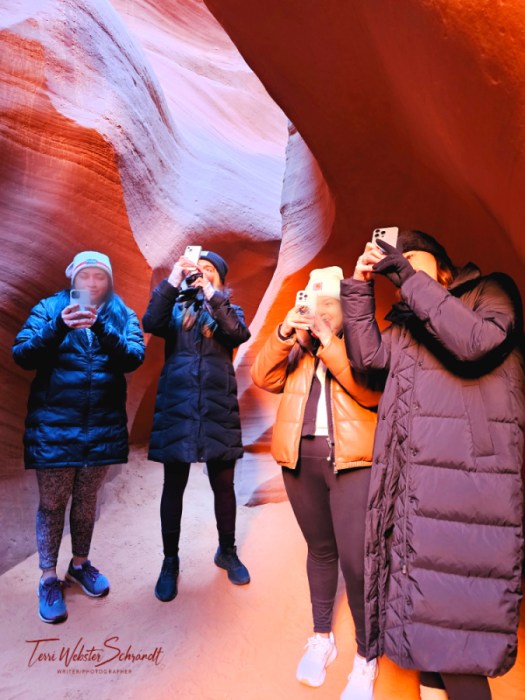
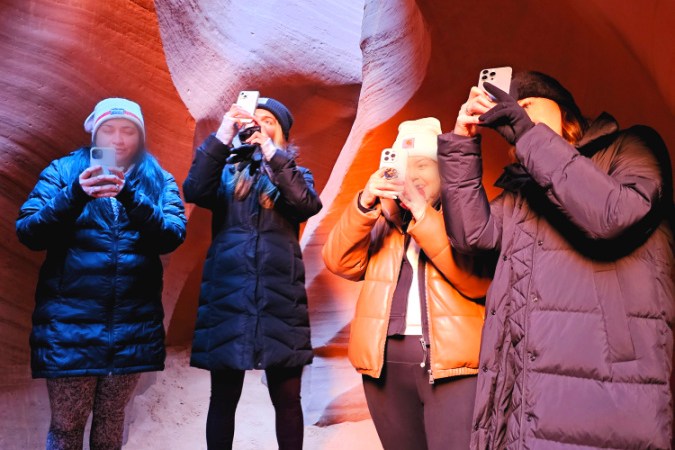
Our experienced Navajo guide showed how to adjust phone camera filter settings for taking “warm” pics while inside the slot canyon. (I blurred two of the faces…).
This week, we’re exploring the various processes of photo editing. The last time I offered this theme for Sunday Stills was in 2018! Aside from the typical editing tools we use, there are more options in 2024. What are your favorite editing tools and please share some examples.
“You don’t make a photograph just with a camera. You bring to the act of photography all the pictures you have seen, the books you have read, the music you have heard, and the people you have loved.” ~ Ansel Adams
I admit I love to edit my photos, but sometimes it’s fraught with necessity. Particularly now that my newer mobile phone takes huge images! I resize images more often using my phone’s photo editor to simply share one for social media or in a text. They take up a lot of space in my phone and, subsequently, my cloud storage.
How I Manage My Images
We all have various ways of managing our images, whether for capture, storage, editing, or platforms for sharing.
Editing
When I took the WordPress Blogging University course in 2014, then known as Photography 101, WordPress recommended PicMonkey, an editing program I still use. Back then PicMonkey was free. I currently have a Pro account which costs about $10/ month.
To edit, I use PicMonkey to resize the image to 800×800 for my WordPress media files. Any larger uses up our valuable media file space. PicMonkey also watermarks my images for publication using the “add graphics” function. My go-to basic photo edits are cropping, exposure, saturation, and image rotation or leveling. There are almost countless editing features in the Pro version and PicMonkey has a tutorial on most of them. I also use special effects, text, frames, and overlays.
I often use the “touch up” function to brighten eyes, whiten teeth, and smooth skin for adjusting faces in images. Now you know my secrets. 😉
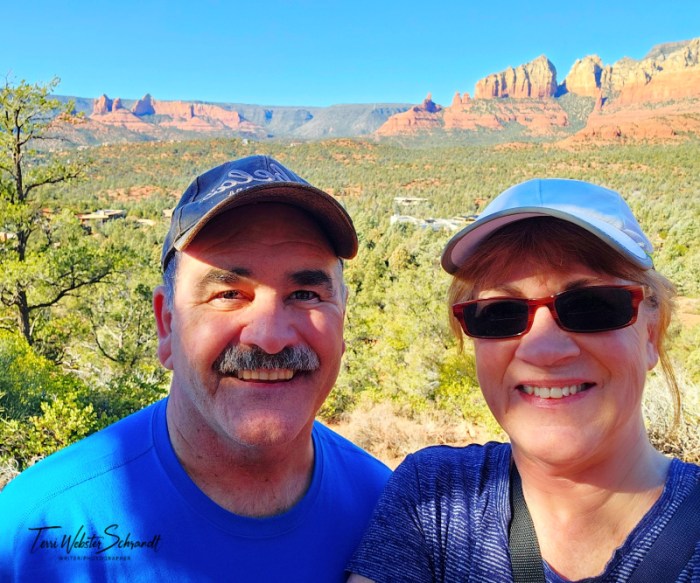
“Be kind to your photographer; the power of editing is in their hands.” – Unknown
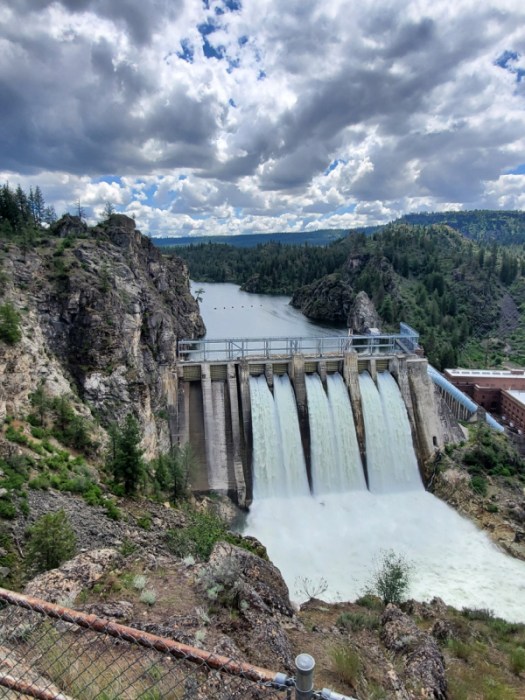
These images of Long Lake Dam, are examples of typical edits. I cropped/resized, adjusted the exposure/contrast, straightened the horizon, desaturated, and sharpened the image. The desaturated image of Long Lake Dam is being turned into a 30×24 canvas print to place on one of our walls.

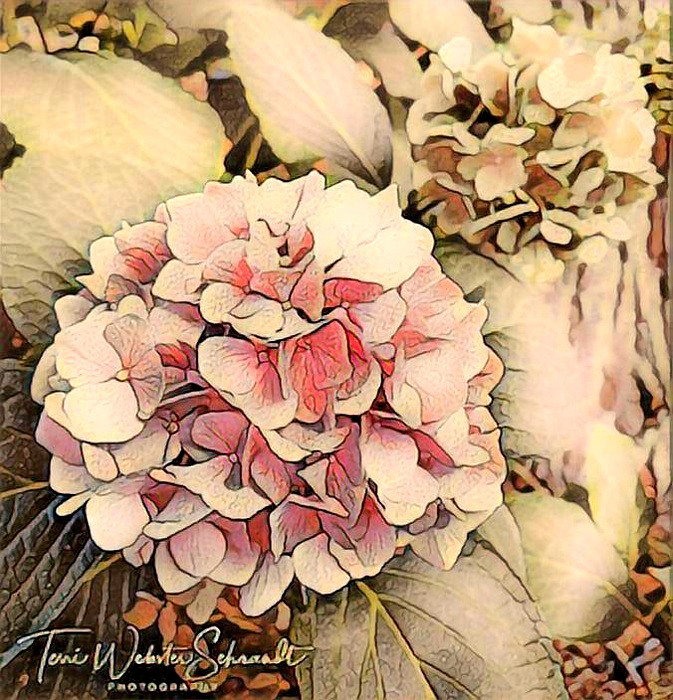
I also enjoy using filters to add interest to photos. No doubt you’ve seen the effects of Painnt, an app for mobile devices. I have a series of favorite filters. Once I create the filtered image, it is easily saved in a Dropbox folder. You can find Painnt free for Android and iPhone. My Google subscription for Painnt is $12/ year, which gives me unlimited use 😊

“A photographer’s eye is perpetually evaluating.” ~ Henri Cartier-Bresson
I also have fun using and creating Bitmojis (digital avatars) for my blog signatures. Other bloggers use these and I find it fun to see how others characterize themselves as an avatar. These are also created with the Bitmoji mobile app. (Apple i-store & Google Play).
Does it look like me?

Cloud Storage
I also use Dropbox to store all my documents and photos. I save my images by date. My cellphone auto-connects to the camera uploads folder in the original size which, with my Samsung S23 Ultra, is a whopping 4000×3000 pixels. I have a premium plan which gives me 2 TB of storage. This also costs me $10/ month. I also have several free accounts for storage such as Amazon Photos (Prime at $12/month), Google Photos, and Microsoft One Drive. Probably more than I need.
I have an Amazon Echo which streams my photos uploaded to Amazon, plus sends me messages sharing images from “On This Day.”
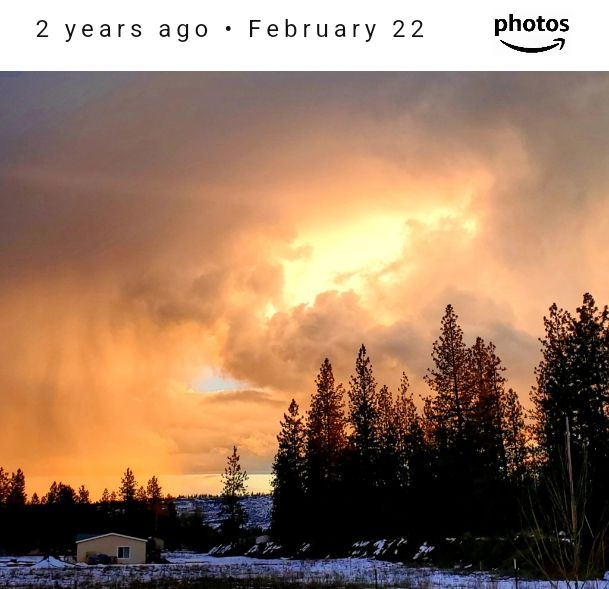
One Drive has my photos beginning in 2006! As for Google, it has a feature that can tell you the location of the photo.
Do you really need all these? Probably not. I have them and use them for various functions. I spend a few minutes a day deleting duplicate images from these three cloud services since Dropbox is my go-to storage cloud. I also save most of my edited photos in designated folders in Dropbox.
If you are serious about photography (as a hobby in my case), I believe these costs are minimal. Add this to my WordPress Explorer plan with 2 domains and I pay $11 per month. Not bad for a serious leisure hobby. With this plan, I get 13GB of storage. If you’re totaling, I’m spending about $43 per month for these services.
Pro Editing Tips from Fellow Bloggers
“Gosh, my job is so easy! I just click a button all day!” … Said no photographer, ever.
I want to admit right here and now, that I am no expert when it comes to photo editing, or photography for that matter. I know what I like and I seem to have a good eye for composition. But over the years, I’ve taken cues and advice from fellow bloggers and photographers from whom I’ve seen their best practices at work.
John from Journeys with JohnBo (and a co-host of Lens-Artists challenges) shares his how-tos in his popular CellPic Sunday feature where he shares his expertise with using cell phone photography and other photo-editing programs like Luminar Neo (which uses AI tools).
Hugh from Hugh’s Views and News shares a variety of blogging tips. His post “5 Things You Can Do To Free Up Media Space…” provides tips about resizing your images before you upload them to the media library. A must if you are saving media space for the long haul.
Tina Schell, fab photographer of Travels and Trifles who also co-hosts Lens-Artists challenges uses Topaz Labs to enhance some of her images.
Other photo-bloggers use Canva or Adobe Creative Cloud which includes Lightroom, Bridge, or Photoshop. With both Canva and Adobe, you have powerful AI tools at your fingertips. Canva and PicMonkey are also excellent for creating graphics.
Editing with AI (Artificial Intelligence)
“Today, the term “AI” describes a wide range of technologies that power many of the services and goods we use every day – from apps that recommend TV shows to chatbots that provide customer support in real time.” Source
Whether you or I are fans of this technology is immaterial. It’s here, so let’s take advantage of some of its technology. As bloggers, we already see how AI tech is integrated into our blogs should we choose to use it. Generative AI is a type of artificial intelligence that is used to create content based on a text prompt. It is already being used by WordPress.
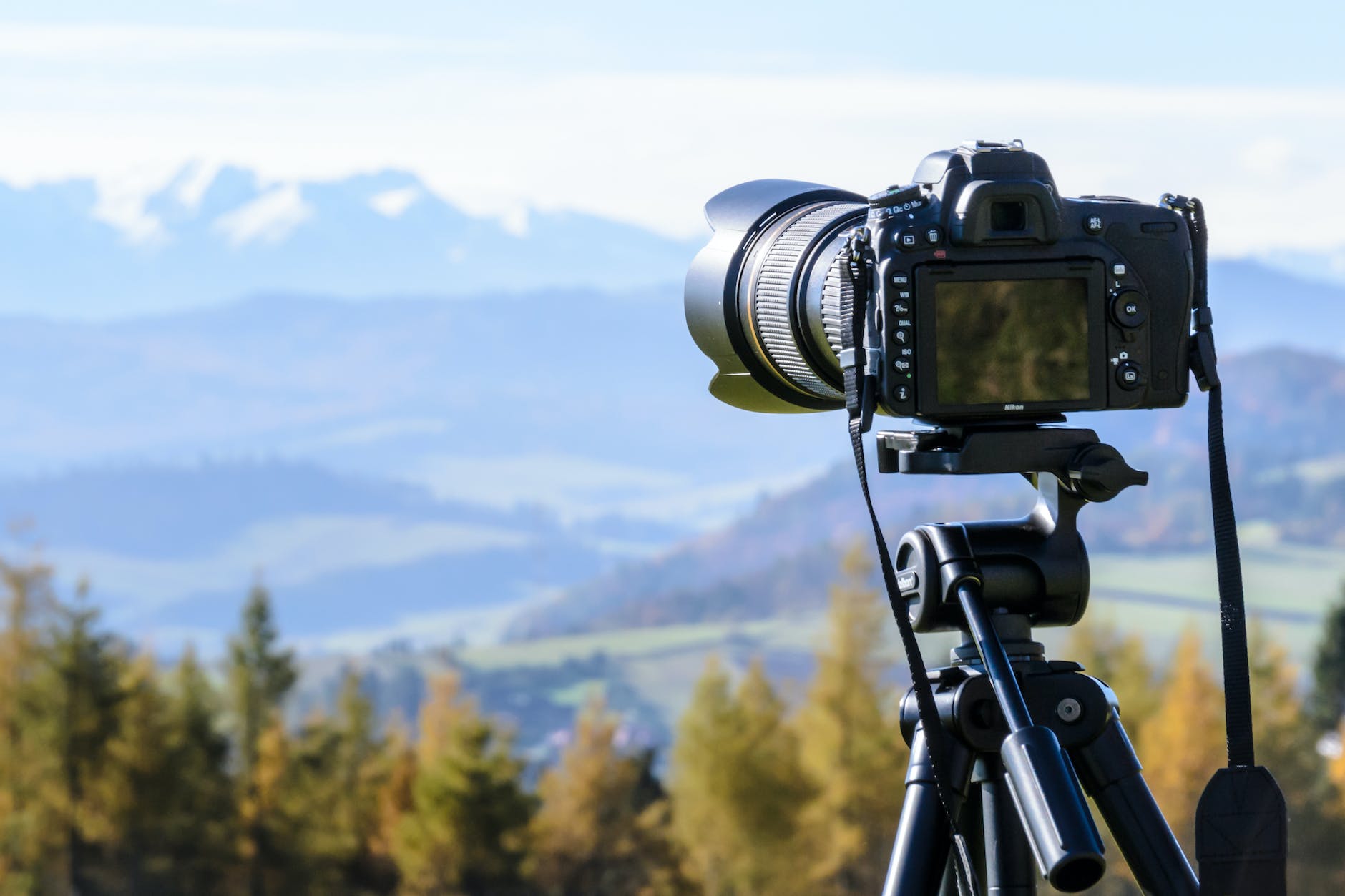
In terms of image editing, AI has some interesting features, especially in the generation of creating images from text. In the example below, I went to Pexels in WordPress’ image block’s drop-down menu and typed “photo editing.” The image is an example of Generative AI at work. WordPress guarantees these images are copyright-free.
Have you tried AI-generated images? As a sci-fi and fantasy buff, I enjoy reading about mythical creatures. Diana at Myths of the Mirror writes wonderful fantasy novels and often uses illustrations in her books and covers. Recently she posted how to use Bing Images “create” using AI generation for her fantasy creatures. Truly inspired by this idea, I hopped on the website and had a go!
My current obsession with bald eagles led me to try this AI image generator through Copilot Designer, initially accessed here: https://www.bing.com/images/create/ If you are interested you can create your own account. Images are free to create.
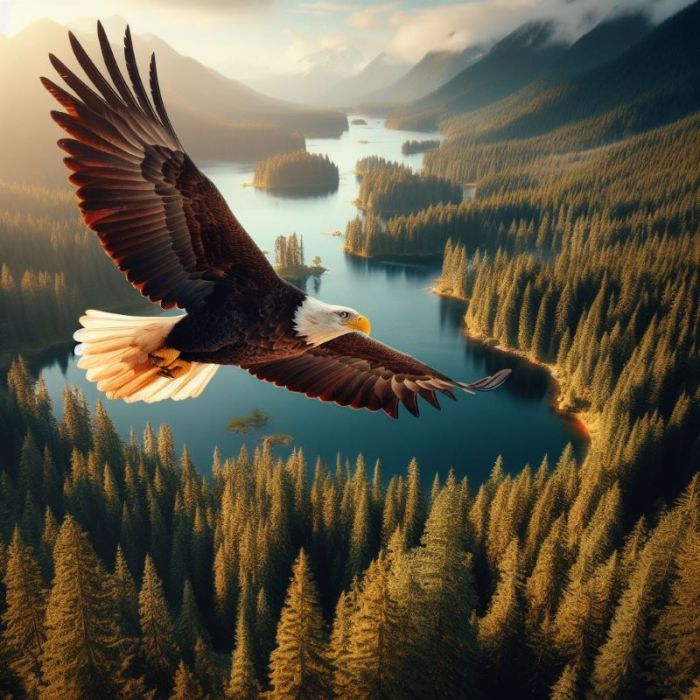
I could never achieve this view in real life. The images generated are free to use with no copyright infringement issues.
Another fantasy author I follow is Rebecca Chastain, who lives in the Greater Sacramento area. After reading her debut series of books Gargoyle Guardian Chronicles, I became obsessed with her descriptions of gargoyles. Historically, gargoyles are depicted as grotesque, stone animal hulks that stand guard on Gothic architecture to deter unwanted visitors. Chastain’s are magical creatures that fly and boost magic.
Continuing to be inspired by Diana’s AI mythical creatures, I used Generative AI to create a gryphon, an eagle/lion hybrid.
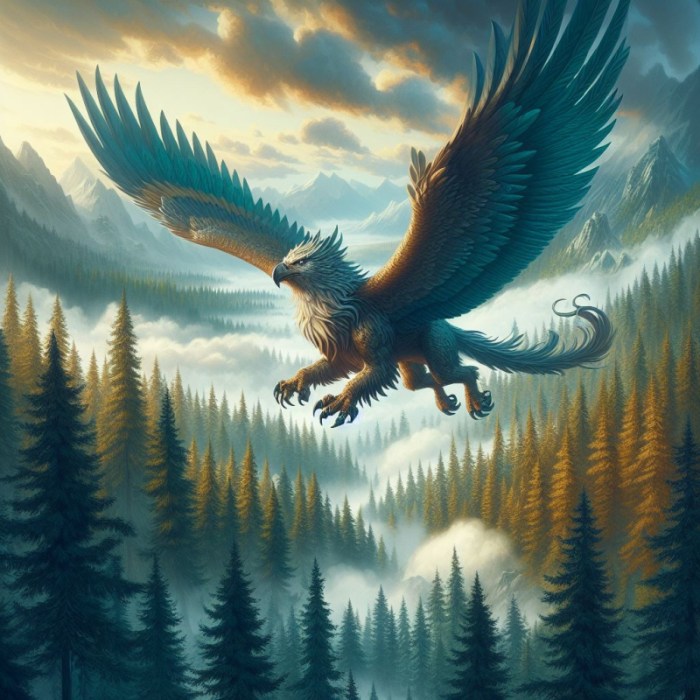
How often might I use this feature? Not sure yet. But it’s fun!
I am in no way suggesting we use Generative AI to replace our photography.
For more reading on AI tools used in photo editing, consider 16 Incredible AI Photo Tools to Try in 2024 (Free and Paid).
“You don’t take a photograph, you make it.” ~ Ansel Adams

Sunday Stills Photo Challenge Reminders
The Sunday Stills weekly-themed photo challenge is easy to join. You have all week to share and link your post. If you choose to link to Sunday Stills, please also leave a comment on my post.
- Remember to title your blog post a little differently than mine.
- Please create a new post for the theme or link a recent one.
- Entries for this theme can be posted all week.
- Tag your post “Sunday Stills.”
- Don’t forget to create a pingback to this post so that other participants can read your post.
- I also recommend adding your post’s URL to the comments.
This Week’s Featured Bloggers
Sunday Stills is a wonderful community of bloggers, poets, artists, and photographers who desire to connect with one another. Below are this week’s links from bloggers who shared their photos of how they edited their images. I add these all week as new links are posted.
- YOUR BLOG’S NAME GOES HERE…
- Always Write
- Bend Branches
- Between the Lines
- Bushboys World
- Cats and Trails and Garden Tales
- Cee’s Photo Challenges
- The Day After
- Deb’s World
- The DogLady’s Den
- Graham’s Island
- Hugh’s Views and News
- Loving Life
- Light Words
- Musin’ with Susan
- Now At Home
- Photos By Jez
- Quaint Revival
- Travels with Ali
- Two Trails, One Road
- Walkin, Writin, Wit & Whimsy
Themes for March are ready to view on my Sunday Stills Photo Challenge Page. This page is updated monthly. Join me next week as we explore… Rainy Days.
For the Sunday Stills photo challenge this week, show us the before and after images of your photo-editing favorites, and please share what editing programs and tools are your favorites.

© 2024 Copyright — secondwindleisure.com — All Rights Reserved
Discover more from Second Wind Leisure Perspectives
Subscribe to get the latest posts sent to your email.

 Second Wind Leisure Perspectives
You are most welcome!
LikeLiked by 1 person
[…] you to everyone who shared their links and thoughts about photo editing and its processes and tools. It was very educational and I came away with some great ideas I can […]
LikeLike
Very nice & helpful post. Beautiful you sharing your knowledge & experience. Very nice you write for photo editing information. I like.
LikeLike
Thank you.
LikeLiked by 1 person
[…] Sunday Stills […]
LikeLike
[…] Year until I heard a woman on the news talk about being only 25, and has lived 100 years. Then, Terri of Sunday Stills, playfully spoke of a leap of faith. Social media “engagements” were off the chart with […]
LikeLike
Just got in by the skin of my teeth! Phew
https://travelswithali.com/2024/03/02/to-edit-or-not-to-edit-that-is-the-question/
LikeLiked by 1 person
[…] week for Sunday Stills, Terri has asked whether we edit our photos or not. I like to edit most of my photos as the software […]
LikeLike
Hi Terri, Great editing examples! I always love your use of Painnt filters. Here is a link to my post on compositing. I have also been using Generative Fill in Photoshop, not to drastically change my work, but to speed up tasks like removing objects or enhancing my work https://musinwithsusan.com/2024/03/01/mix-and-match/.
LikeLiked by 1 person
Thank you, Susan! I’ve had some great success with Painnt! What a good idea to use Gen AI for certain tasks.
LikeLike
Hi, Terri 👋 Just saw your comment on my FOTD post; I hadn’t had a chance to look at your post on editing & was unaware of the section on generative AI. I’ve been using Hot Mods a lot recently & my latest Fan Of… post is about re-imagining Lensy shots. I’ve linked to your post: https://jezbraithwaite.blog/2024/02/26/lensball-shots-re-imagined-as-ai-artwork-in-my-fan-of-series-2/
LikeLiked by 1 person
AI is a hot topic and I think very interesting. Your post was perfect timing and a great coincidence 😄
LikeLiked by 1 person
[…] This is also my post for Terri’s Sunday Stills: Editing. […]
LikeLiked by 1 person
I love the hydrangea!!
LikeLiked by 1 person
Thank you, Aletta. They’re so pretty as the original but it’s fun to add the filter once in a while.
LikeLiked by 1 person
I totally agree 👍🏻
LikeLiked by 1 person
Wonderfully interesting post Terri. I love editing my photos. My S22 phone camera has great software and I resize my photos using this. The phone also has a remaster tool, this sometimes works other times I just like my original shot. My iMac has some good editing software too. I haven’t used AI generated tools yet, will have to look into that. I’m off now to see what I can come up with.
LikeLiked by 1 person
Hi Ali, thank you for sharing your editing tools. Phone cameras have come such a long way over the years. I enjoy my S23U, so much to learn! Generative AI is a fun tool. I just created one as a cover image for my Sunday Stills rainy day theme in 2 days. Looking forward to seeing what you come up with!
LikeLiked by 1 person
[…] Sunday Stills Editing I have been attempting to integrate my photos that inspired this prose poem and failing. Any […]
LikeLike
[…] Sunday Stills: Fun with Editing […]
LikeLike
Plenty of great information in this post, Terri. I don’t edit my photos very much apart from cropping them and adding a watermark to them. For watermarking, I use an app called Photobulk. I use the free version.
I take all my photos on an iPhone. I’m amazed of the quality of many of the photos, but I seldom use any of the photo editing tools on the phone. However, I do use the Apple iCloud which gives me a huge 50GB amount of storage. For that I pay £21.99 per month and they have never increased the cost since I started using it way back in 2013. Not only does it store all my photos, but also all my music.
I’m very interested in AI, but have never used it to create images yet. The ones you have shared are amazing, but I don’t think they can ever replace photos. I’ll have to have a look more into AI images. WordPress used to have a AI image experimental block but it seems to have gone now.
Thank you also for linking to my post about how to save storage space in our blogging media libraries.
I’ll leave you with a link to this Wordless Wednesday post which shows a photo I edited to make myself a much better sketcher (my art teacher in my final year at school said on my school report that I draw like a 3-year-old child).
LikeLiked by 1 person
Thanks for sharing your go-to editing tools, Hugh. Iphones have long been a high standard for phone cameras. Once I began to rely on my samsung android phones for much of my photography, I found I needed better editing tools during post processing.
Love that photo you shared. And to think we can use filters to make us draw like a child!
LikeLiked by 1 person
I also play with the AI-generated images. It’s fun.
LikeLiked by 1 person
It seems a lot of authors are using these images for their books. Seems like a great idea!
LikeLiked by 1 person
I know Diana got her characters for her new book. I created something for the cover of my new book but will play with it more.
LikeLiked by 1 person
Seems like a great tool for covers.
LikeLiked by 1 person
Since I created it, it shouldn’t have any copyright issues. Right?
LikeLiked by 1 person
Not at all the way I understand it.
LikeLiked by 1 person
I’ve been watching YouTube and reading about AI. A lot to know.
LikeLiked by 1 person
I read Microsoft copilot create and anything you create is yours.
LikeLiked by 1 person
That’s good to know. The images are very good.
LikeLiked by 1 person
Lots of great info to take from your post this week, Terri. I learned along time ago when you want to be smarter, stand next to the smartest kid in the room. lol. As photographers, we can never know it all, and it is nice to see what others are doing to make their work better. Great info!
LikeLiked by 1 person
Thanks, Donna! I feel like I got to stand next to a bunch of smart bloggers this week to learn and share some great tips! I’m amazed at how many programs, tools and apps are available for any kind of photography/
LikeLiked by 1 person
Yes. I agree.
LikeLiked by 1 person
Wow, I loved all the photos in this post especially the AI generated ones, Terri. I use Photoshop to do editing – resize images, enhance brightness and contrast, replace backgrounds,remove unwanted oblects or people, open the shut eyes, etc. I use my phone features to blur the backgrounds, remove people in the background. I like yout tools in PicMonkey to touch up on faces ans whiten teeth. I don’t play with photos enough right now to subscribe PicMonkey, though. I posted photos on my blog more often years ago but didn’t have good tools. Good to know now the tools are available.
LikeLiked by 1 person
Thank you, Miriam! Thanks for your details of editing practices you’ve used in the past. There are more tools to choose from these days. For me it’s comfort level, price and ease of learning the tech!
LikeLiked by 1 person
You’re welcome, Terri. I haven’t found the perfect tools yet. What I’m using is too general. I would like something that can do a specific touch up like PicMonkey. I checked it out, the basic plan is $6/month. I may subscribe to see if it’s enough for me.
LikeLiked by 1 person
That plan should be just fine. I got a deal 2 yrs ago on the Pro plan and kept it. Good luck and feel free to reach out if needed.
LikeLiked by 1 person
Super, Terri. I’ll ask you if I have any questions!
LikeLiked by 1 person
[…] Sunday Stills – Photo editing: fun or fraught? […]
LikeLike
Lots of great info here, Terri. I go back and forth with editing. It’s so easy to go way overboard, but a little straightening and cropping usually can help most photos. Leaning horizons make me nuts. I would love to really learn Lightroom but I’m afraid I don’t have the time and patience needed.
Thanks for the link to Bitmoji. I’ve been seeing those avatars on various blogs and was interested in finding out more… now I know!
LikeLiked by 1 person
Thanks, Janis! I’ve learned a few things that I like over the years, and it’s great to read what others like as well. Bitmojis are fun and I customize them further in Pic Monkey (Canva ok too).
LikeLike
Terri, did you write this post with this Wednesday’s WQ in mind. You hit everything I wrote about – almost, LOL This is a fun post. I think, in your spare time, you and John should do some videos that WALK us through HOW you use these services. I have Cee to thank for that. I was such a dummy when it came to editing until about a year and a half ago- even though I used Photoshop Elements and Canva. One of the things she told me was to “wear my glasses.” Gosh, where have I heard that before! LOL. One of my main problems is straightening my photos because I have an astigmatism even with LASIK. That tool on the Adobe products is a game changer for me. Another one I have to use on some of my older pictures is the heal tool. I have a lot of dirty lens spots. My Dad drove into my head, “Don’t touch the lens,” and I listened to him until I met Cee. I never even saw the spots on my pictures. I know, again with the glasses. Anyway, great post. Mine is coming tomorrow. 🙂
LikeLiked by 1 person
Lol, Marsha, I didn’t know that was the WQ theme. I’ve actually learned some things myself from other bloggers who shared their tips and tricks. I get prompted to clean my phone camera lens a lot and because I wear glasses, I always have a soft cloth available.
My pet peeve is seeing slanted horizons. It’s not artsy in a landscape…it’s annoying.🙄 A pro photographer told me this years ago. He photographed windsurfing and said waterscapes must be level. Glad you pay attention to that detail.
Looking forward to your post! Great minds and all 🤣
LikeLiked by 1 person
You can’t tell from my title, that much of my post will be about editing. I didn’t have that in mine when I started it. 🙂
LikeLike
[…] you to Terri from Second Wind Leisure Sunday Stills #Photo Editing for introducing me to Bitmogi App. She also shares some of her editing apps and […]
LikeLike
I love reading about other people’s editing.
Very interesting theme this week.
LikeLiked by 1 person
Thanks, Dawn! Any tips from you?
LikeLike
I use different programs than you but the steps are the same.
LikeLiked by 1 person
I loved this post Terri! I love to edit photos. I can sit all day and edit! I use pic monkey to resize. I have many editing apps on my phone and I use all of them. Snapseed is my favorite along with Google photos. Google photos has the best eraser! I sometimes over edit which I end up redoing but some Instagram photographers over edit and it looks really cool. For me, it ends up being what is pleasing to my eyes.
Now because of you I now have Bitmoji on my phone! lol
I will add an art image I just did with my phone, to my upcoming Tuesday Tidbits post. Stay tuned!
I have not used AI … yet!! I will have to try!
Enjoy your week my friend and thanks for the fun post!
LikeLiked by 1 person
Hi Nancy, thank you for sharing your photo-editing tools and ideas! You are one of several who uses Snapseed–my turn to download it and check it out. I’m doing more on my phone these days. I can
t wait to see your bitmoji! Glad to help inspire you as you did me 🙂
LikeLiked by 1 person
Terrific post Terri. :D :D Photography and editing is such a personal choice. And you always give us fun and wonderful photos to grow with.
Here is my entry for the week.
https://ceenphotography.com/2024/02/26/photo-editing-sunday-stills-challenge/
LikeLike
Thank you, Cee! High praise from you!
LikeLiked by 1 person
[…] Here is my entry for Terri’s Sunday Stills Challenge. […]
LikeLike
This was a fun theme for this week. I want to go through and read the comments to see what peoples thoughts were on editing and check out the other blogger tips you shared. I like that the guide showed you how to adjust settings. It drives me crazy when people won’t share what settings helped them. I would love to work on some night photos, but I know that takes patience.
I have not played with the AI stuff, but maybe I will just to see how it works.
https://troyerslovinglife.blogspot.com/2024/02/taking-in-life-around-mesundaystills_26.html
LikeLiked by 1 person
Thank you, Kirstin, it’s technical and not of huge interest to many folks, but like you, I was interested to see what other editing tools other photographers use. I always learn something.
LikeLike
Terri, what an informative post. I use Picmonkey to enhance or resize my images, which I obtain from Pixabay, Pexels, etc. I also use Squoosh to condense the images so they don’r take up a lot of space in my blog. When I switched back to a classic theme from an FSE theme, all my images were too large and slow loading. For the past couple of weeks, I have resized most images in my blog using Squoosh. From my end, my blog seems to move much smoother because the images don’t take forever to load. (It’s been a very tedious chore but I feel it was worth it).
I store my images in categories on my hard drive, and back them up with an external hard drive, just in case. Since most of my images are from other sources, if I don’t see a need to keep them, I delete them.
LikeLiked by 1 person
Thank you, Eugi. How interesting about your editing process. That sounded like a worthwhile endeavor to resize the images. You are in a unique position to not have to save many images. As for many of my images, I have edited duplicates floating around. The time to take doing all this for our blogs is worth it in the long run!
LikeLiked by 1 person
You’re welcome, Terri.
LikeLiked by 1 person
[…] think my photo-editing has come a long way since I started editing my photos almost 6 years ago. I feel I went from trying […]
LikeLike
I wonder what Adams would say about all this new fangled photography stuff?
I use 16 TB external drives for storage.
The biggest mistake people make is doing too much.
LikeLiked by 1 person
Wow, that’s a lot of storage, Wayne, but you likely shoot in raw and use a lot of video. Is 16 enough for you? 😉
Adams would still say we make our photos, but we still need our practiced eye.
LikeLiked by 1 person
Photography is like singing……….everyone can do it, but few can do it well.
LikeLiked by 1 person
Boy, isnt that the truth. Great analogy!
LikeLiked by 1 person
Fascinating AI images! I don’t know how to do this or to edit photos unfortunately.
LikeLiked by 1 person
Thanks Stevie! Editing is as simple as cropping, adjusting color and contrast to your images. I bet you do some of this right?
LikeLiked by 1 person
Not usually, but maybe I need to start, lol.
LikeLiked by 1 person
Hi Terri, you give lots of great advice and information here in your post and I can relate to much of it. Those AI images are very clever and I wouldn’t have a clue where to start on them! I also use Canva, Snapseed and PhotoShop for editing and went back and re-read my post on this topic from 2018 – a few things have changed in my thinking and use of editing tools but not a lot.
I’ve posted here https://debs-world.com/2024/02/26/do-you-edit-photos-before-posting-sundaystills/
LikeLiked by 1 person
Thanks, Debbie. Thanks for sharing your thoughts and editing tools of choice. The AI images are fun to create, but honestly, I don’t know what their practical application is for me just yet. I see many AI generated images on blogs for poetry challenges so far. It’s always fun to explore!
LikeLiked by 1 person
[…] week Sunday Stills is all about photo editing and Terri’s post can be found here: Photo Editing: Fun or Fraught, where she goes through some of the programs she uses with her photos and why. It’s a very […]
LikeLike
Thanks for sharing all the tools you use for your photos! How cool that you’re having the Long Lake Dam image made into a canvas print. I’ve often thought about doing that as well, but never followed through.
Interesting to learn more about AI editing as well. Something to explore in future… Your images are striking! Amazon Photos sounds similar to Google Photos, which I use. They have the same “on this day” feature and also create occasional fun animations from my photos.
Oh yes, resizing photos is important for a website. I find the desktop Windows 11 photos app does a great job and there are other editing features as well. I just noticed they have a new function that can blur, remove or change your background! The Paint app is good for that too.
Love the quotes, especially the last two! Photo editing is an art form in itself. 🙂
LikeLike
P.S. Forgot to mention – I love your Bitmojis! They DO look like you. 😎 I’ve been using them since they first showed up on Facebook.
LikeLiked by 1 person
Thank you, Debbie! ❤️
LikeLiked by 1 person
Thanks for this great advice, Terri. I think storage is the biggest problem of all.
LikeLiked by 1 person
Happy to add my 2 cents to the pot, thanks Toni. And I agree. Space is a big issue over time!
LikeLiked by 1 person
Loved this one Terri! Your AI generated images are really fun. I especially liked that you didn’t try to create something that would be mistaken for a true image. Also thanks for the mention. I love topaz but the vast majority of my images are in Lightroom (storage and minor edits) and Photoshop (which as a long-time user I love but it is complex). I have some fun apps for iPhone images but my favorites get moved to Lightroom which has great cataloging and key wording. Probably way more than you cared to know but one more key item-storage. I back up every image on local hard drives and store my images there as well having learned the hard way not to eat up my computer storage with images! And I back them up online with Backblaze in case of disaster. Whew, sounds like a lot but not once you’re used to it I swear!! A very helpful post for many of your followers, nicely done!
LikeLiked by 1 person
Thank you, Tina! It’s fascinating to read what you and others have shared. I tried LR but it got tricky for me with our packing and impending move in 2020 which really slowed me down for patience to learn new things.
I have an external hard drive somewhere, and should dust it off and use it. And you reminded me I have backblaze too. OmG. It’s all worth it at some point. My problem is I need to go through my camera uploads and delete the bad ones and duplicates. Ugh. Media maintenance…is that a thing?? 😉
LikeLike
A great lot of photos and tips Terri ✔️😀 I used PicMonkey until they wanted money. I don’t use my phone much so I had to let a good program go.
This is a challenge made for me so I did go overboard a tad 😁
LikeLiked by 2 people
Thank you, Brian! I decided it was worth a few bucks to get Pro Monkey 🐒 🤣. Off to read your post!
LikeLiked by 1 person
[…] Sunday Stills: #Photo-Editing: Fun or Fraught? […]
LikeLike
There is a lot of helpful info here Terri. I am going to tuck this post away for the future. I can’t do anything as to the phone, but I do like that Painnt feature and also how you do the various profile images of yourself and yes I like this one. I follow a photographer on Facebook named Jill Wellington. I used to use her photos for my posts the first few years I blogged and I always sent her the blog post so she could see how I used it … I did this as she always showed how people used her pics for ads, magazine covers, etc. She kept telling me to use whatever photos she created, but to use my own too because that is how sh started her blog way back when and also her IG account. She is a retired news reporter and mostly now a portrait photographer. She does some fun stuff with overlays and has been experimenting with AI and shows her followers how she creates different pics by using AI. It’s pretty amazing to me to see all these ways to alter your original image. I could stand to learn how to enhance my pics – I crop them and that’s about it. So, you won’t be seeing any images being altered in my post today that *I* personally did, just a post about what might appear to be an altered, or fake-em-out image.
LikeLiked by 1 person
Thank you, Linda! I have to say that once I got my better phone, it made editing easier on the phone–I like to share pics of our area with a local Facebook group I follow. Man are with my phone, but really good ones, like zoomed in birds are taken with my Lumix FZ300, then uploaded for me to make adjustments. I then download then back to my phone from a Dropbox file that contains edited images just for this group. It’s a bit of a monkey dance, but it doesn’t take long. Same with the filters which I discovered I can do a few on my phone 🙂
LikeLiked by 1 person
I do have to learn how to enhance my photos. The problem is I end up spending hours going through photos that I took on several excursions, so by the time I’m done deleting the bad ones, wavering on the meh ones and picking the ones I will use in a post, I tell myself “you take too many photos!” Then I organize them to use in posts with the narrative I drafted the day I did the walk – otherwise I would not recall all the details. I also have all these photos I scanned in on two flash drives, one which is in the safety deposit box for safekeeping. You do make it sound effortless though after a few times of doing it.
LikeLiked by 2 people
I’m not going to lie and say photo editing doesn’t take time. It definitely does. I spent an hour today looking for something to go with my Wordless Wednesday leap day post. Found something but had to re-edit the image from over 10 years ago. Sigh.
LikeLiked by 1 person
Oh, wow – I was thinking once you got the hang of it, it would be easier.
This week I was stymied what to use as the header image, so this is the first time I used the photo you say we can use for our Challenge post(s). I am sometimes torn whether to use the same image twice in the post if it will be part of the “story” later. And, also, I meant to mention this last night: Shelley (“Quaint Revival”) often uses Image Compare. Last night I read your post in Reader and Reader does the same thing to Image Compare to your two flowers, as it does to slideshows. It only works on the actual blog site. With Shelley’s posts, we are diverted from Reader to her site, so Image Compare works. So my Image Compare didn’t work in Reader.
I also noticed I inserted two links in that post, one to a YouTube video and one to your site – we no longer have to pick “open in new tab” as it does it automatically (for now anyway). They keep changing it. 🙂
LikeLiked by 1 person
[…] As mentioned earlier, I am joining Terri Webster Schrandt’s Sunday Stills February 25th Challenge: “Fun with Photo Editing”. […]
LikeLike
What a fun topic this week, Terri! I enjoyed all your photos, tips, and links, too! Here’s my take: Fun with Photo Edits and Apps – Cats and Trails and Garden Tales
LikeLiked by 1 person
Thank you for your support, Susanne! I enjoyed sharing!
LikeLiked by 1 person
Thank you for hosting the challenge! I know it’s a lot of work, but it provides much needed inspiration to bloggers!
LikeLiked by 1 person
[…] for this week’s Sunday Stills Challenge #Photo-Edits I thought I’d use the simple (and free) tool that came with my Samsung Galaxy phone, […]
LikeLike
Terri, I use Microsoft Photo Editor on most photos to make a few basic edits, crop, straighten, white balance, contrast, shadows, etc. and to convert them from RAW to Jpeg. If I’m feeling creative I’ll open some of my favorite images in Lightroom and play with different features until I get what I want out of it. Lightroom costs $10 per month, but I think it is worth it. It is a great place to organize photos by subject – i.e. birds, beaches, sunsets, etc. I ‘store’ a lot of my images on Shutterfly since it is free when you order at least one product per year. Those are organized by date and folder name and recalled and downloaded for use at any time.
The fantasy images you generated are beautiful and I can easily see either of them used as a book cover. Your Long Lake Dam image is beautiful. Sometimes ‘basic’ gets the job done best.
LikeLiked by 1 person
Thank you for sharing your favorite editing tips, Suzanne. Sounds like you have it figured out for yourself. And you take excellent pics!!
LikeLike
Terri, I never have anything figured out, but I do well enough to get by. Great post with lots of good take-a-way points,
LikeLiked by 1 person
Terri,
You’ve given us some very useful tips here. I enjoy editing as much as I do taking pictures. I have used Luminar for several years now but only scratched the surface with all that is possible. The first thing I am going to do when I sign out here is to check the amount of space I use in the WP Library. I may need to do some trimming. Thanks again, and have a great week. Joe
LikeLiked by 1 person
Thanks, Joe, always glad to help out my blogging community as I also get tons of helpful hints and ideas from folks! I am editing away as I type today. I suppose if we were pro photographers, we would take more advantage of the editing features!
LikeLiked by 1 person
Terri,
I would love to talk to you sometime about how you manage, compress, and store your pictures. Would you mind if we talked by phone at some point when it’s convenient for you?
LikeLiked by 1 person
Not a problem, Joe! I can PM you on Facebook.
LikeLiked by 1 person
Hi, Terri – Thank you for all of these tips. They are incredibly helpful. I also now take all of my photos with my Smartphone (Samsung Ultra S24). A couple of years ago, I took a diginal photography course and the instructor recommended ‘snapseed’ which is a free photo editing app. It is my go-to editing app and I highly recommend it. I also have a paid subscription to Canva and use it frequently.
LikeLiked by 1 person
Happy to share, Donna! Wow, you already have to S24U! And thank for sharing your tips. Canva and PicMonkey are very similar in their scope.
LikeLiked by 1 person
Oops – I meant to taype S23U! <3
LikeLiked by 1 person
I Love my S23 U. It’s amazing!
LikeLike
Where to start? Super impressed, Terri, with your ability to absorb and experiment with all of this. I think I did adopt Painnt at your suggestion and played with it for a while. I don’t have it on my current phone. I’m not a fast learner when it comes to technology and I can lose so much time trying. You obviously find it great fun and your photos are wonderful as a result of this. I know that AI is so much smarter than me. Maybe I’ll try the WordPress version when I run out of walks. Imagine the cakes I could generate! Now that’s definitely a thought.
LikeLiked by 1 person
Oh you have to create some AI cakes for us, Jo!! They’re virtual to us anyway, right? Thank you for your comments and thoughts about editing. AI is smarter than all of us but only as smart as the programmer who added the codes. And you? Run out of walks? Nevah!
LikeLike
🤣🍰💟
LikeLiked by 1 person
Great tips. I’m considering upgrading my phone just for the better camera. I take all my pictures with an iPhone now.
LikeLiked by 1 person
Thanks Jacqui, that’s what did. It was time for an upgrade, and I got a crazy good deal with Costco 😀
LikeLiked by 1 person
I rarely edit photos (I am not interested enough in it I guess and I am not super techy) but the tip I need to go explore is the size one in Hugh’s blog. I am currently sitting at 74% in my files on WP and need to figure out how to go forward. Interesting AI creations but again something I suspect I won’t play around with. I do love the image of the canyon again!
LikeLiked by 1 person
Thanks, Bernie! I wasn’t all the techie with editing but it became easier. One thing you can do about your media space is to delete old posts along with their images. I had some huge images from posts in the earlier years. No one was reading them so I deleted them. A big help. Going forward, keep your images at no more than 800×800- ish.
LikeLike
Thanks for the info about one of the items I can do. Winter never seems long enough to get all those sorts of stuff done!
LikeLiked by 1 person
[…] Sunday Stills – Photo Editing: Fun or Fraught? […]
LikeLike
Thanks so much for sharing all these great tips and resources, Terri. I’ve been using the background remover for years! Some of this I can do on MAC which really helps with photos. Now that WP gives us access to Pexels images, I admit I don’t go in and edit the sizes. With the FSE themes, things are a bit different. I’ll look at that aspect of the photo sizes. You have a wonderful talent with your photography. I look forward to your photos every week.
LikeLiked by 1 person
Thank you for reading, Colleen and your kind comments. These are great skills for all of us.
LikeLiked by 1 person
I will have to learn some tips for my iPhone 11. I still have issues taking photos. But then, I don’t take the time to work with it either. 😅
LikeLiked by 1 person
So much fun in this post to unpack and try! That’s so cool that you’re making a large print of the dam. It’s a stunning photo. I’m lucky to have just enough time each week to pull together a post, let alone play around with editing. Photo editing for me has to be free and right there at my finger tips or it doesn’t happen. Having said that, I do go back to your comments you share and recommendations to refresh my memory of what cool things you’ve found to be beneficial and have added them to a someday maybe list. AI is soaring like an eagle for those who love to dabble in it. Your trial images you shared are enchanting. Well, done! Thank you for sharing all the words of wisdom and the great examples of what can be when you play with editing for fun!
LikeLiked by 1 person
Thanks for reading, Shelley. I know it’s an odd challenge, but I’m always curious to know what other photo-bloggers do or don’t do with post-processing.
LikeLiked by 1 person
You’re welcome. It’s a fun way to learn new tricks and fodder for a future post where you can write about what you learned and how it worked trying the new tips out!
LikeLiked by 1 person
I guess I’m boring! Meaning that I look for good photo opportunities, compose and take the picture. Back at the computer, I do minimal editing. I use some Photoshop filters, NIK software and Topaz. I’m not really a fan of AI but realize that some of the filters in PS use AI. And, oh my, I don’t use my cell phone for photography. It’s just not as good as the newer models. I do admire your talent and patience for working on a small surface like a cell phone.
LikeLiked by 1 person
You, boring? Never! We all have our favorite ways of using photography, Anne. A lot of photography is composition and the eye of the photographer. Without these, edits are useless. Again my phone uploads everything to Dropbox and I edit on my desktop computer. Thank you for your kind words and for sharing your how-tos with us 😊
LikeLiked by 1 person
Maybe boring is the wrong word. Perhaps lazy when it comes to editing? Yes, lazy.
LikeLiked by 1 person
Lazy might be the word, Anne! I know how you feel–editing takes as long as writing a post!
LikeLiked by 1 person
Thanks for these lovely tips, Terri. I never edit my photographs other than size. I only use zoom.
LikeLiked by 1 person
Thanks, Robbie, I’m glad you found something useful!
LikeLiked by 1 person
What a fun post, Terri. I’m so glad you gave AI a try. I also edit my photos, though I don’t do anything a technical as you do. The only thing I pay for is the cloud storage to hold them all. My camera (phone) also takes HUGE photos and I have to reduce them all manually to a usable size. I tried to change the setting on my camera/phone, but apparently that isn’t a feature. *Sigh*.
And don’t you love it when a photo is so wonderful that it needs no editing?! A great bunch of images.
LikeLiked by 1 person
Thank you, Diana! As I researched more about Generative AI, I found that AI is used practically everywhere. I guess it’s here to stay. Resizing cell phone photos is super important I believe. Thanks for the added inspiration and the timeliness of it 🙂
LikeLiked by 1 person
I know you like having fun with your photos and these look great. That dam photo will look good on your wall. I’m pretty basic when it comes to photo editing, similar to the typical edits you mentioned. I do everything in an old version of Photoshop Elements and have all my files on my computer and various backups. Nothing in the cloud! I don’t have anything particular against the various options you mentioned and wouldn’t rule out using them at some point. It’s just not where my interest lies currently. That said, here’s my response for this one: https://grahamsisland.com/2024/02/25/ko-pizza/
LikeLiked by 1 person
Thanks for weighing in, Graham. I should have mentioned I also have some images backed up on an external hard drive, but I forgot where I put it 😉 At some point I need to back up more physically. I’ve heard good thing about photoshop elements. The Long Lake Dam canvas print will replace an old Ansel Adams framed poster of Half-Dome.
LikeLiked by 1 person
See, you’re doing well if you’re replacing Ansel Adams!
LikeLiked by 1 person
😅 well when you put it love that…
LikeLiked by 1 person
Terri, what an interesting post! I love that before/after view of the blossom. I was unfamiliar with WordPress AI tools. Thanks for sharing that. I don’t know how much I will use the artistic creation, but it looks like it might be fun to play with.
LikeLiked by 1 person
Thank you, John! The Painnt filter app is a lot of fun and creates some amazing effects. There is so much of AI in everything now, we don’t even know. Using Generative AI is interesting and fun to play with.
LikeLike
Those AI generated images are amazing, Terri. I’ve used them for book reviews as a background for the book cover but I think I need to explore more editing tools instead of sticking to the same one. Photoshop is beyond me but there must be easier ones . I’ll check out Luminar Neo…
LikeLiked by 1 person
Thanks for reading, Cathy! How cool you are familiar with the AI generation and use them! It’s always nice to expand…but I’m intrigued by Fotor as you mentioned 🙂
LikeLiked by 1 person
Fotor also has the AI option.
LikeLiked by 1 person
[…] This week’s Sunday Stills challenge theme is ‘Fun with Photo Editing.’ See more responses here. […]
LikeLike