
OK, you’ve been out taking pictures with your phone or camera. Now what?
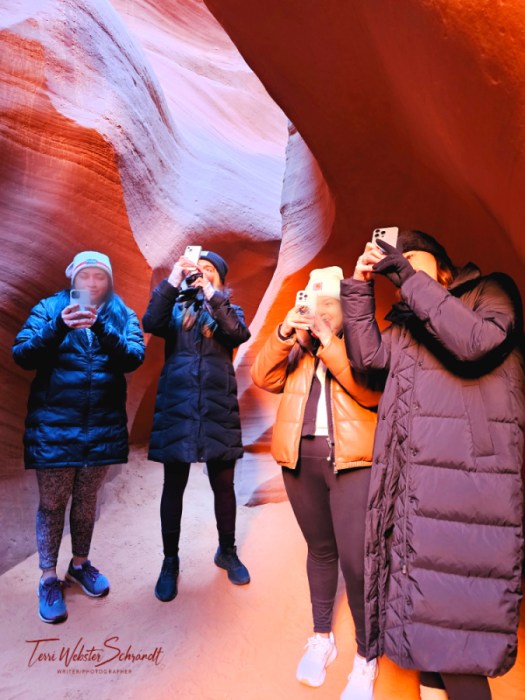
Our experienced Navajo guide showed how to adjust phone camera filter settings for taking “warm” pics while inside the slot canyon. (I blurred two of the faces…).
This week, we’re exploring the various processes of photo editing. The last time I offered this theme for Sunday Stills was in 2018! Aside from the typical editing tools we use, there are more options in 2024. What are your favorite editing tools and please share some examples.

“You don’t make a photograph just with a camera. You bring to the act of photography all the pictures you have seen, the books you have read, the music you have heard, and the people you have loved.” ~ Ansel Adams
I admit I love to edit my photos, but sometimes it’s fraught with necessity. Particularly now that my newer mobile phone takes huge images! I resize images more often using my phone’s photo editor to simply share one for social media or in a text. They take up a lot of space in my phone and, subsequently, my cloud storage.
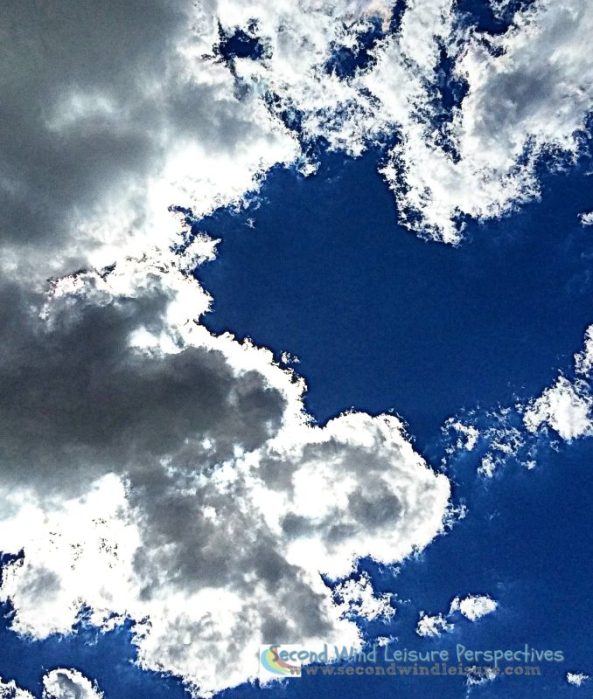
How I Manage My Images
We all have various ways of managing our images, whether for capture, storage, editing, or platforms for sharing.
Editing
When I took the WordPress Blogging University course in 2014, then known as Photography 101, WordPress recommended PicMonkey, an editing program I still use. Back then PicMonkey was free. I currently have a Pro account which costs about $10/ month.
To edit, I use PicMonkey to resize the image to 800×800 for my WordPress media files. Any larger uses up our valuable media file space. PicMonkey also watermarks my images for publication using the “add graphics” function. My go-to basic photo edits are cropping, exposure, saturation, and image rotation or leveling. There are almost countless editing features in the Pro version and PicMonkey has a tutorial on most of them. I also use special effects, text, frames, and overlays.
I often use the “touch up” function to brighten eyes, whiten teeth, and smooth skin for adjusting faces in images. Now you know my secrets. 😉
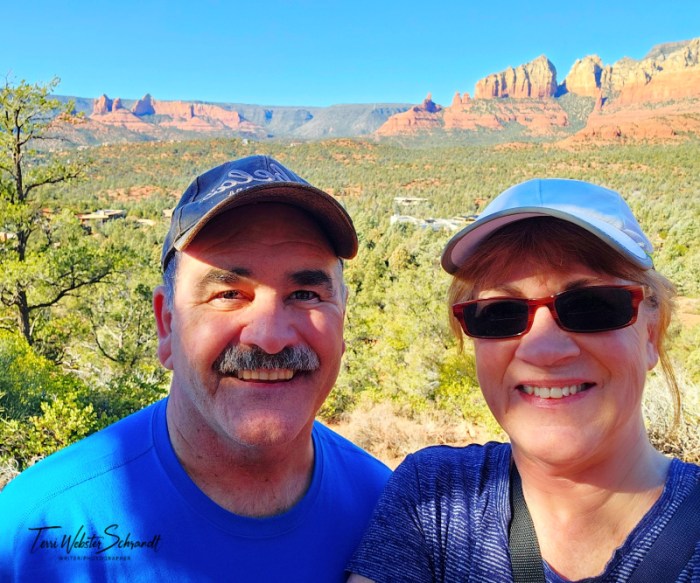
“Be kind to your photographer; the power of editing is in their hands.” – Unknown
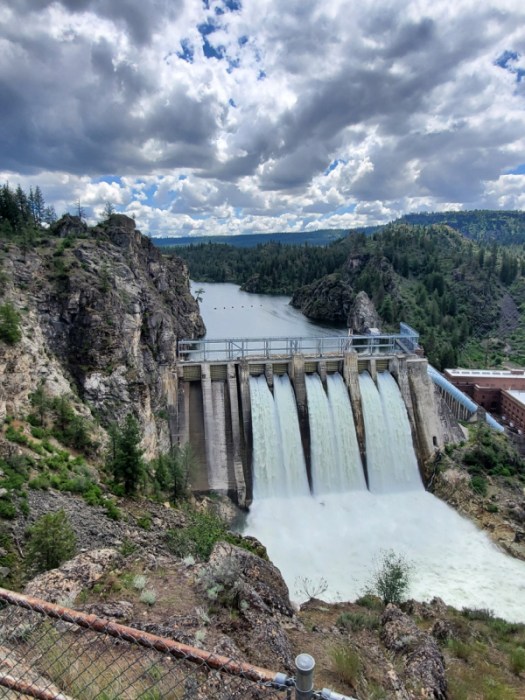
These images of Long Lake Dam, are examples of typical edits. I cropped/resized, adjusted the exposure/contrast, straightened the horizon, desaturated, and sharpened the image. The desaturated image of Long Lake Dam is being turned into a 30×24 canvas print to place on one of our walls.

I also enjoy using filters to add interest to photos. No doubt you’ve seen the effects of Painnt, an app for mobile devices. I have a series of favorite filters. Once I create the filtered image, it is easily saved in a Dropbox folder. You can find Painnt free for Android and iPhone. My Google subscription for Painnt is $12/ year, which gives me unlimited use 😊

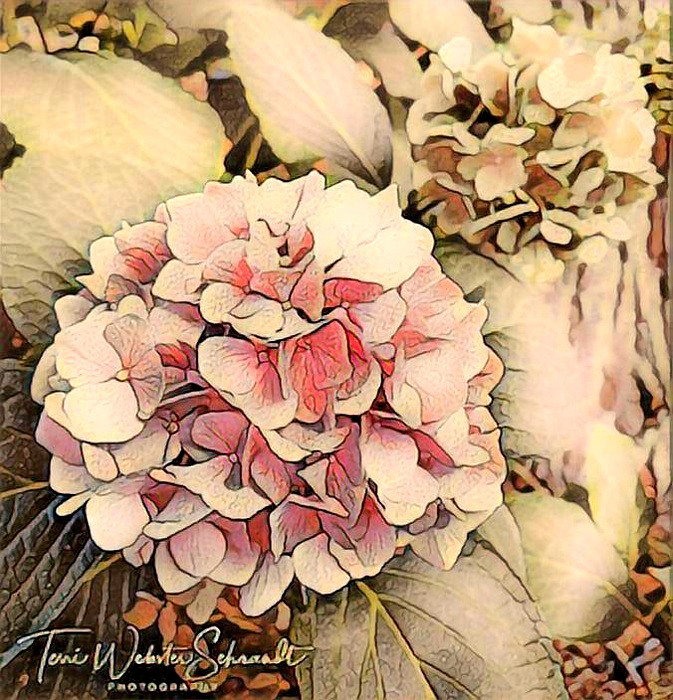
“A photographer’s eye is perpetually evaluating.” ~ Henri Cartier-Bresson
I also have fun using and creating Bitmojis (digital avatars) for my blog signatures. Other bloggers use these and I find it fun to see how others characterize themselves as an avatar. These are also created with the Bitmoji mobile app. (Apple i-store & Google Play).
Does it look like me?

Cloud Storage
I also use Dropbox to store all my documents and photos. I save my images by date. My cellphone auto-connects to the camera uploads folder in the original size which, with my Samsung S23 Ultra, is a whopping 4000×3000 pixels. I have a premium plan which gives me 2 TB of storage. This also costs me $10/ month. I also have several free accounts for storage such as Amazon Photos (Prime at $12/month), Google Photos, and Microsoft One Drive. Probably more than I need.
I have an Amazon Echo which streams my photos uploaded to Amazon, plus sends me messages sharing images from “On This Day.”
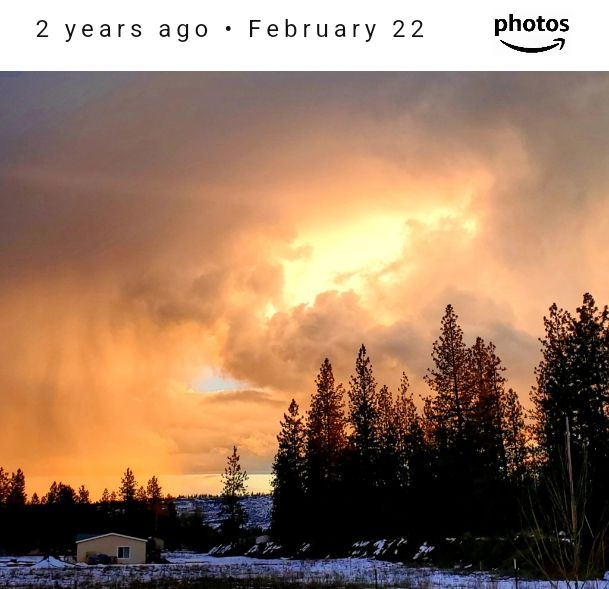
One Drive has my photos beginning in 2006! As for Google, it has a feature that can tell you the location of the photo.
Do you really need all these? Probably not. I have them and use them for various functions. I spend a few minutes a day deleting duplicate images from these three cloud services since Dropbox is my go-to storage cloud. I also save most of my edited photos in designated folders in Dropbox.
If you are serious about photography (as a hobby in my case), I believe these costs are minimal. Add this to my WordPress Explorer plan with 2 domains and I pay $11 per month. Not bad for a serious leisure hobby. With this plan, I get 13GB of storage. If you’re totaling, I’m spending about $43 per month for these services.
Pro Editing Tips from Fellow Bloggers
“Gosh, my job is so easy! I just click a button all day!” … Said no photographer, ever.
I want to admit right here and now, that I am no expert when it comes to photo editing, or photography for that matter. I know what I like and I seem to have a good eye for composition. But over the years, I’ve taken cues and advice from fellow bloggers and photographers from whom I’ve seen their best practices at work.
John from Journeys with JohnBo (and a co-host of Lens-Artists challenges) shares his how-tos in his popular CellPic Sunday feature where he shares his expertise with using cell phone photography and other photo-editing programs like Luminar Neo (which uses AI tools).
Hugh from Hugh’s Views and News shares a variety of blogging tips. His post “5 Things You Can Do To Free Up Media Space…” provides tips about resizing your images before you upload them to the media library. A must if you are saving media space for the long haul.
Tina Schell, fab photographer of Travels and Trifles who also co-hosts Lens-Artists challenges uses Topaz Labs to enhance some of her images.
Other photo-bloggers use Canva or Adobe Creative Cloud which includes Lightroom, Bridge, or Photoshop. With both Canva and Adobe, you have powerful AI tools at your fingertips. Canva and PicMonkey are also excellent for creating graphics.
Editing with AI (Artificial Intelligence)
“Today, the term “AI” describes a wide range of technologies that power many of the services and goods we use every day – from apps that recommend TV shows to chatbots that provide customer support in real time.” Source
Whether you or I are fans of this technology is immaterial. It’s here, so let’s take advantage of some of its technology. As bloggers, we already see how AI tech is integrated into our blogs should we choose to use it. Generative AI is a type of artificial intelligence that is used to create content based on a text prompt. It is already being used by WordPress.
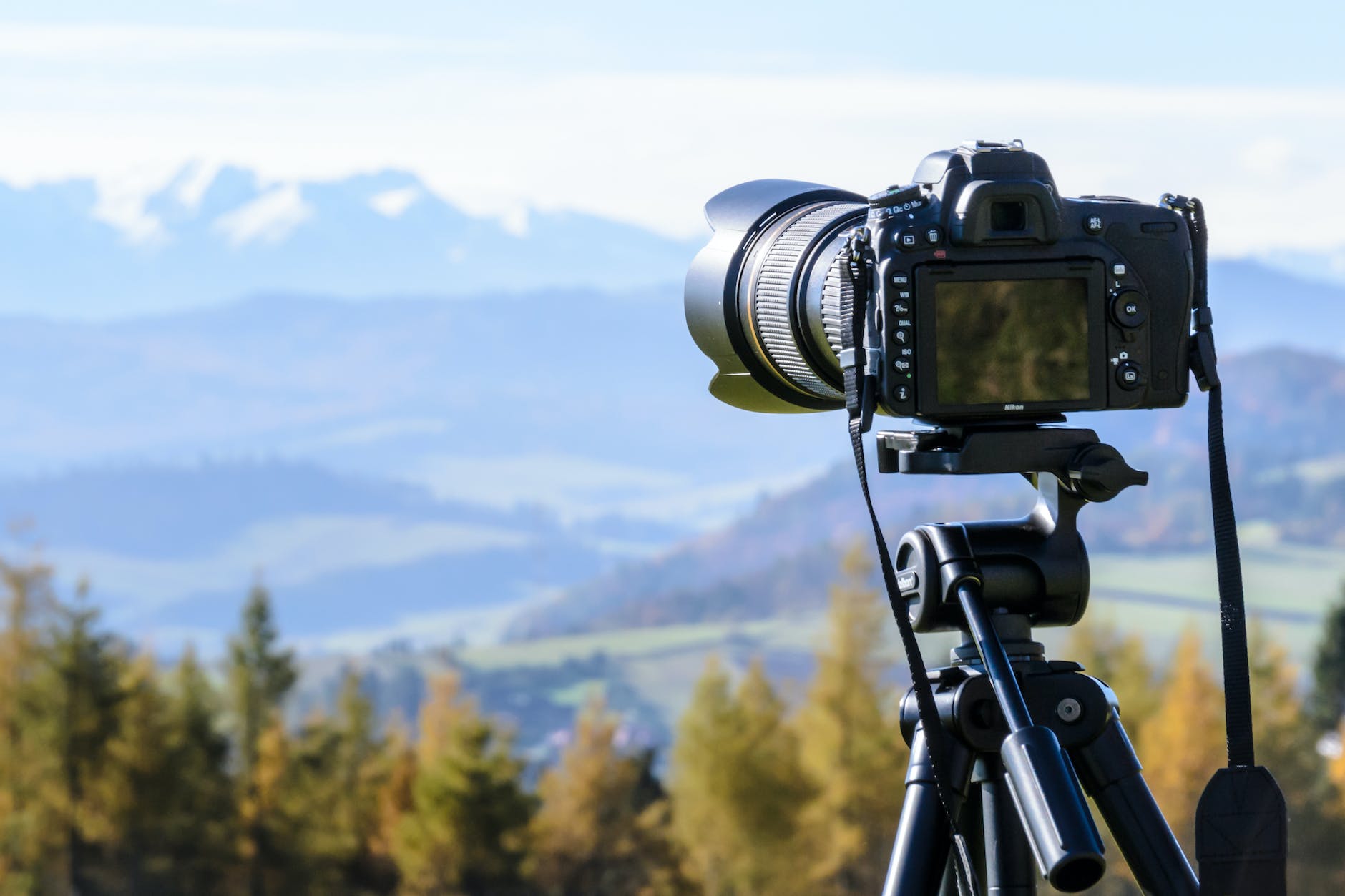
In terms of image editing, AI has some interesting features, especially in the generation of creating images from text. In the example below, I went to Pexels in WordPress’ image block’s drop-down menu and typed “photo editing.” The image is an example of Generative AI at work. WordPress guarantees these images are copyright-free.
Have you tried AI-generated images? As a sci-fi and fantasy buff, I enjoy reading about mythical creatures. Diana at Myths of the Mirror writes wonderful fantasy novels and often uses illustrations in her books and covers. Recently she posted how to use Bing Images “create” using AI generation for her fantasy creatures. Truly inspired by this idea, I hopped on the website and had a go!
My current obsession with bald eagles led me to try this AI image generator through Copilot Designer, initially accessed here: https://www.bing.com/images/create/ If you are interested you can create your own account. Images are free to create.
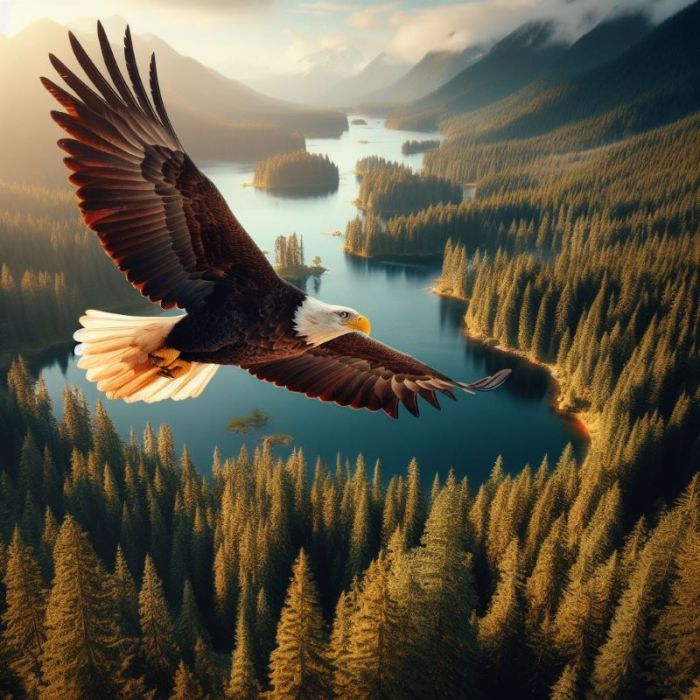
I could never achieve this view in real life. The images generated are free to use with no copyright infringement issues.
Another fantasy author I follow is Rebecca Chastain, who lives in the Greater Sacramento area. After reading her debut series of books Gargoyle Guardian Chronicles, I became obsessed with her descriptions of gargoyles. Historically, gargoyles are depicted as grotesque, stone animal hulks that stand guard on Gothic architecture to deter unwanted visitors. Chastain’s are magical creatures that fly and boost magic.
Continuing to be inspired by Diana’s AI mythical creatures, I used Generative AI to create a gryphon, an eagle/lion hybrid.
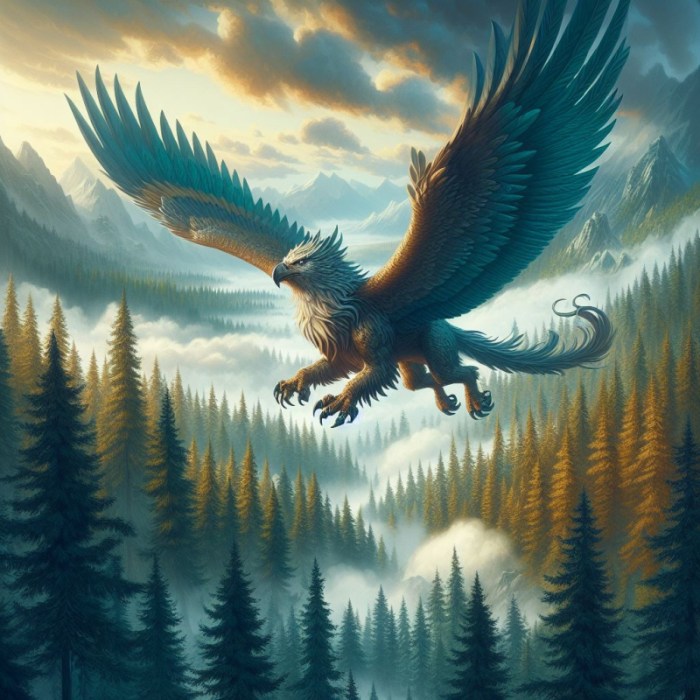
How often might I use this feature? Not sure yet. But it’s fun!
I am in no way suggesting we use Generative AI to replace our photography.
For more reading on AI tools used in photo editing, consider 16 Incredible AI Photo Tools to Try in 2024 (Free and Paid).
“You don’t take a photograph, you make it.” ~ Ansel Adams

Sunday Stills Photo Challenge Reminders
The Sunday Stills weekly-themed photo challenge is easy to join. You have all week to share and link your post. If you choose to link to Sunday Stills, please also leave a comment on my post.
- Remember to title your blog post a little differently than mine.
- Please create a new post for the theme or link a recent one.
- Entries for this theme can be posted all week.
- Tag your post “Sunday Stills.”
- Don’t forget to create a pingback to this post so that other participants can read your post.
- I also recommend adding your post’s URL to the comments.
This Week’s Featured Bloggers
Sunday Stills is a wonderful community of bloggers, poets, artists, and photographers who desire to connect with one another. Below are this week’s links from bloggers who shared their photos of how they edited their images. I add these all week as new links are posted.
- YOUR BLOG’S NAME GOES HERE…
- Always Write
- Bend Branches
- Between the Lines
- Bushboys World
- Cats and Trails and Garden Tales
- Cee’s Photo Challenges
- The Day After
- Deb’s World
- The DogLady’s Den
- Graham’s Island
- Hugh’s Views and News
- Loving Life
- Light Words
- Musin’ with Susan
- Now At Home
- Photos By Jez
- Quaint Revival
- Travels with Ali
- Two Trails, One Road
- Walkin, Writin, Wit & Whimsy
Themes for March are ready to view on my Sunday Stills Photo Challenge Page. This page is updated monthly. Join me next week as we explore… Rainy Days.
For the Sunday Stills photo challenge this week, show us the before and after images of your photo-editing favorites, and please share what editing programs and tools are your favorites.
© 2024 Copyright — secondwindleisure.com — All Rights Reserved






 Second Wind Leisure Perspectives
What is YOUR perspective? Please include your name if WP identifies you as “anonymous.